
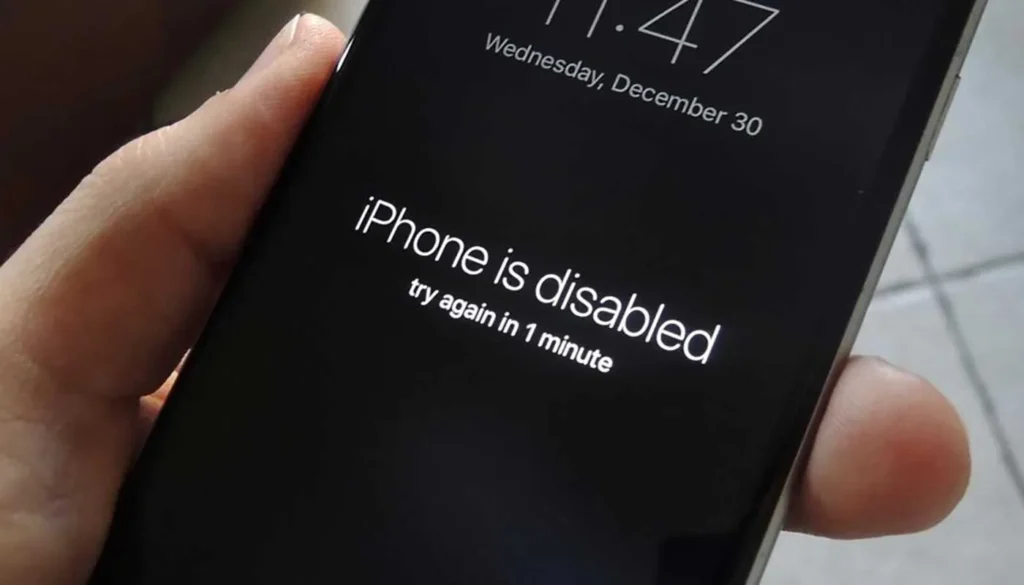

Losing or forgetting your iPhone passcode can be a frustrating experience, especially when your device becomes disabled after too many failed attempts. Whether you’re preparing to sell an old phone, or you simply need to regain access to a locked device, performing a factory reset is the necessary step to bypass the screen lock. As tech experts at 1apple.xyz, we’ve broken down the three legitimate, secure methods approved by Apple for resetting your iPhone without needing the current passcode.
Understanding the Catch: Apple ID and Activation Lock
Before we dive into the steps, it’s crucial to understand a key security feature: the Activation Lock. A factory reset will wipe all data, but it *will not* remove the Activation Lock if ‘Find My iPhone’ is enabled. You will still need the linked Apple ID and password to set up the device again. This is Apple’s critical theft deterrent.

Method 1: Restoring via Recovery Mode (Using a PC or Mac)
If your iPhone screen is locked, disabled, or you simply do not know the passcode, forcing the device into Recovery Mode is the most reliable way to perform a complete restore. This process requires a computer running macOS (Finder) or Windows (iTunes).
Preparation Steps:
- Ensure you have a reliable USB cable.
- If using Windows, download the latest version of iTunes.
- If using macOS Catalina (10.15) or later, use Finder.
Step-by-Step Guide for Recovery Mode:
The button sequence to enter Recovery Mode differs by model. Follow the instructions specific to your device:
For iPhone 8, iPhone X, iPhone SE (2nd gen) and newer models:
- Press and quickly release the Volume Up button.
- Press and quickly release the Volume Down button.
- Press and hold the Side button (Power button) until the Recovery Mode screen appears (you will see the connect-to-computer icon).
For iPhone 7 and iPhone 7 Plus:
- Press and hold the Volume Down button and the Side button simultaneously.
- Keep holding until the Recovery Mode screen appears.
For iPhone 6s and older models:
- Press and hold the Home button and the Side (or Top) button simultaneously.
- Keep holding until the Recovery Mode screen appears.
Executing the Restore:
- Connect your iPhone to your computer while it is in Recovery Mode.
- A dialog box will appear in iTunes or Finder offering options.
- Select Restore.
- Your computer will download the necessary software and initiate the factory reset, completely wiping the device. This process bypasses the screen passcode.
Method 2: Erasing Remotely via iCloud (Find My)
If you have access to another internet-connected device (a computer, another phone, or tablet) and know the Apple ID credentials linked to the locked iPhone, you can perform a remote wipe using iCloud. This is the fastest way to remotely factory reset an iPhone without having the physical device passcode.
Steps to Use iCloud Wipe:
- Go to iCloud.com/find using any web browser.
- Sign in using the Apple ID and password associated with the locked iPhone.
- Click All Devices at the top of the screen.
- Select the locked iPhone from the list.
- Click Erase iPhone.
- Confirm the action. This will remotely trigger a factory reset on your device, provided it is connected to the internet (Wi-Fi or Cellular).
Note: Once erased, the phone will be returned to the initial setup screen, requiring the Apple ID password to clear the Activation Lock.
Method 3: Utilizing the Security Lockout Screen (iOS 15.2 and Later)
For iPhones running iOS 15.2 or newer, Apple introduced a simplified “Erase iPhone” option directly on the Lock Screen after several incorrect passcode attempts. This is the easiest method if you know your Apple ID password but forgot the screen passcode.
How the Security Lockout Feature Works:
- Attempt to enter your passcode incorrectly several times until the iPhone displays the “iPhone Unavailable” or “Security Lockout” message.
- After a short delay (usually 5 to 15 minutes), an Erase iPhone button will appear at the bottom right corner of the screen.
- Tap the Erase iPhone option.
- You will be prompted to enter your Apple ID password to confirm the sign-out and device wipe.
- The phone will reset itself immediately, factory restoring the device without ever needing the old screen passcode.
Critical Reminder: Disabling Find My iPhone
If you are performing a factory reset to sell or give away the device, you must ensure that ‘Find My iPhone’ is disabled immediately after the wipe using your Apple ID password. If you leave Activation Lock enabled, the new owner will be unable to set up the phone, rendering the device useless to them.
Final Thoughts
While losing your passcode is stressful, successfully performing a factory reset on your iPhone is achievable using one of these three legitimate methods. For locked or disabled devices, Recovery Mode using iTunes/Finder remains the industry standard. If you know your Apple ID credentials, leveraging iCloud or the newer Security Lockout feature provides a quicker, remote option. Always ensure you have your Apple ID details handy; they are the true key to unlocking your secure Apple ecosystem after any full device reset.