
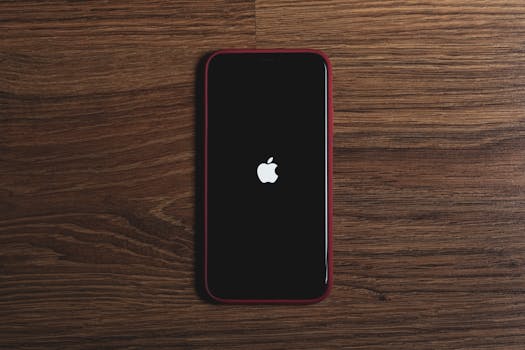

Few sights cause an immediate panic for an iPhone user quite like the persistent Apple logo refusing to load the home screen. If your iPhone is frozen and stuck in a perpetual “boot loop,” don’t worry—this is almost always a solvable software issue, not a sign of catastrophic hardware failure. As the leading tech editors at 1apple.xyz, we’ve put together the definitive guide on resolving this frustrating problem. We will walk you through three increasingly aggressive steps, starting with the simplest fix.
Initial Triage: Why Is My iPhone Stuck on the Apple Logo?
Before diving into the fixes, it helps to know the common culprits. Identifying the cause can prevent the problem from recurring:
- Failed iOS Update: The most common reason. An interruption during a crucial software update can corrupt core system files.
- Insufficient Storage: Attempting an update or restore when the device is critically low on space can cause the install to stall.
- Faulty Restore from Backup: A corrupted iCloud or computer backup can introduce instability when applied to a clean phone.
- Jailbreaking or Unauthorized Mods: Installing non-vetted system tweaks severely increases the risk of boot loops.
Step 1: The Quick Fix—Force Restart Your iPhone
The first line of defense against any iPhone software glitch is a forced restart. This action abruptly shuts down and restarts the power cycle, which can flush out temporary errors or memory conflicts causing the freeze. It will not erase your data.
How to Force Restart Your Specific iPhone Model
The method depends entirely on which iPhone model you own:
iPhone 8, SE (2nd/3rd Gen), X, and Newer (11, 12, 13, 14, 15 series)
- Press and quickly release the Volume Up button.
- Press and quickly release the Volume Down button.
- Press and hold the Side button (Power button) until the screen turns black, and then the Apple logo reappears. Keep holding until the device boots to the Home Screen.
iPhone 7 and iPhone 7 Plus
- Press and hold both the Volume Down button and the Sleep/Wake (Power) button simultaneously.
- Continue holding until the Apple logo appears, then release both buttons.
iPhone 6s and Earlier
- Press and hold both the Home button and the Sleep/Wake (Power) button simultaneously.
- Continue holding until the Apple logo appears, then release both buttons.
If the device powers back on but immediately gets stuck on the Apple logo again, it’s time to escalate to a deeper fix: Recovery Mode. —
Step 2: The Software Reset—Restoring with Recovery Mode
Recovery Mode is designed specifically to allow you to restore or update your iOS device when it won’t boot correctly. When using this method, you will need a computer (Mac running macOS Catalina or newer uses Finder; Windows PC or older Mac uses iTunes). Important Note: If you choose the “Restore” option in this mode, you will erase all data on the iPhone. If you choose “Update,” your data *should* be preserved, but a proper backup is always recommended.
Entering iPhone Recovery Mode
You must connect the phone to your computer while performing the button sequence:
- Ensure your computer is running the latest version of Finder (Mac) or iTunes (PC).
- Connect your iPhone to the computer using a reliable USB cable.
- While connected, perform the specific “Force Restart” button combination for your model (Volume Up, Volume Down, then hold Side Button).
- Crucially: Do not release the button(s) when the Apple logo appears. Keep holding.
- After several seconds, the “Connect to Computer” screen (or Recovery Mode screen) will appear. Now you can release the button(s).
Executing the Restore or Update
- On your computer, a pop-up window will appear stating that your iPhone has a problem that requires it to be updated or restored.
- Choose Update First: Click Update. Your computer will attempt to reinstall iOS without wiping your data. This process can take 15–30 minutes.
- If the update fails or the iPhone gets stuck again, repeat the process and choose Restore. This downloads the newest firmware and completely wipes the device, fixing the corrupt system files.
- Set up the phone as new or restore from a recent iCloud or computer backup once the process is complete.
—
Step 3: The Deep Clean—Using DFU Mode (Device Firmware Update)
If Recovery Mode fails, or if the process consistently stalls, you must use DFU Mode. This is the deepest, lowest-level restore available. It completely erases the firmware and operating system and reloads everything from scratch. Warning: DFU Mode is aggressive and should only be used as a last resort before contacting Apple Support.
How to Enter DFU Mode (iPhone 8 and Newer)
The key difference between Recovery and DFU Mode is that in DFU Mode, the screen remains entirely black. If you see the Apple logo or the “Connect to Computer” screen, you are in Recovery Mode, not DFU.
- Connect your iPhone to your computer and launch Finder/iTunes.
- Press and quickly release the Volume Up button.
- Press and quickly release the Volume Down button.
- Press and hold the Side button for 10 seconds (the screen should remain black).
- While still holding the Side button, press and hold the Volume Down button for 5 seconds.
- Release the Side button but continue holding the Volume Down button for another 5–10 seconds.
- If the screen stays black, you are in DFU Mode. Your computer will alert you that it has detected an iPhone in recovery status.
In Finder or iTunes, follow the prompts to proceed with the full Restore. Since DFU wipes everything, you must have a backup ready if you wish to recover your contacts and apps. —
What If Nothing Works? Contacting Apple Support
If you have tried a force restart, Recovery Mode update, Recovery Mode restore, and the DFU Mode restore, and your iPhone still presents the dreaded boot loop, the problem is highly likely related to hardware. The issue could be a failure of the NAND memory chip, or—most commonly in older models—a failing battery that cannot supply the necessary peak power required for booting the operating system. At this stage, attempting further software fixes is pointless. We recommend:
- Booking a Genius Bar appointment at your local Apple Store.
- Contacting Apple Support online for mail-in repair service.
- Checking your device’s warranty status to see if the repair is covered.
Final Thoughts
The iPhone stuck on Apple logo error is incredibly common, but the solution almost always lies in a software refresh. For most users, a simple Force Restart or utilizing Recovery Mode to perform an update will resolve the boot loop without data loss. Remember to always keep your devices backed up via iCloud or your computer. This preparation ensures that even if you have to perform the highly effective (but destructive) DFU Mode restore, your precious data remains safe and readily recoverable.