

Is your iPhone starting to feel sluggish? Are web pages loading slower than they should? Often, the culprit isn’t your internet connection; it’s a packed browser cache. Clearing the Safari cache and stored website data is one of the quickest ways to improve your iPhone’s performance, enhance browsing speed, and safeguard your digital privacy. Unlike other browsers, Apple keeps the controls for Safari deep within the main iOS Settings app. Don’t worry—the process is simple, and we’ll guide you through every step.

Why Bother Clearing Your Cache? The Benefits of Digital Housekeeping
When you browse the web using Safari, your iPhone saves small files (the “cache”) to help websites load faster on repeat visits. Over time, however, these files accumulate, becoming bloated and potentially conflicting with newer website versions. Here is why you should regularly clear this stored website data:
- Increased Speed: Removing outdated files forces the browser to fetch the freshest version of a page, often resulting in quicker load times.
- Privacy Protection: Clearing cookies and browsing history minimizes the data tracking advertisers can use to profile you.
- Fixing Display Issues: Corrupted cache files can lead to broken layouts or missing images on websites. Clearing the cache resolves these frustrating errors.
- Free Up Storage: While individual cache files are small, the total “Website Data” can often consume hundreds of megabytes, sometimes even gigabytes, of valuable iPhone storage space.
The Step-by-Step Guide: Clearing Safari Cache and Data
Deleting the cached files on your iPhone is done entirely through the Settings application. Follow these instructions precisely to refresh your browsing experience.
- Step 1: Open the Settings app on your iPhone. This is the gray gear icon usually found on your Home Screen.
- Step 2: Scroll down the Settings menu until you find the Safari option and tap it.
- Step 3: In the Safari settings menu, scroll to the very bottom and tap Clear History and Website Data.
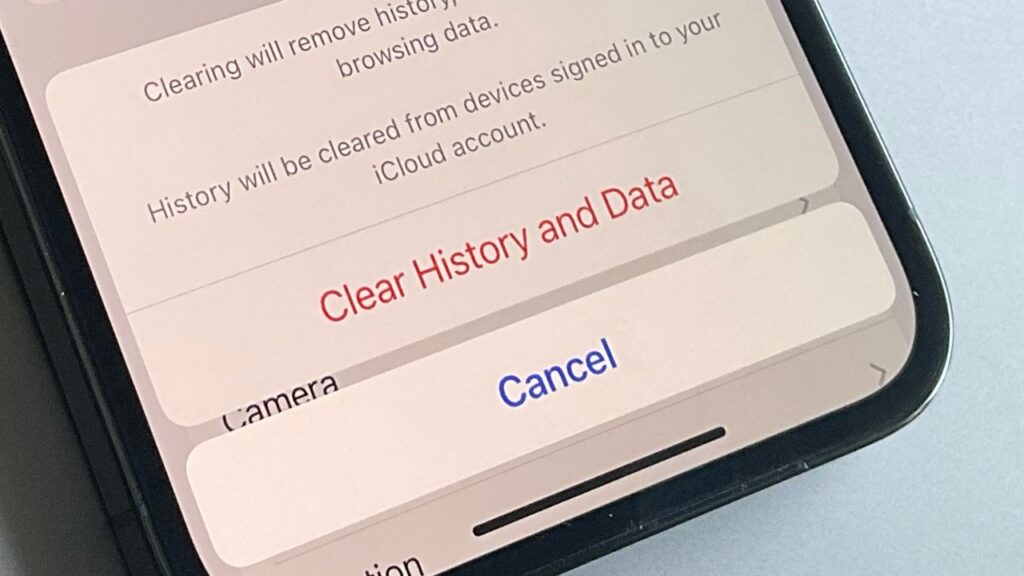
- Step 4: A confirmation prompt will appear, explaining that this action will clear history, cookies, and other browsing data from all devices signed into your iCloud account. Tap Clear History and Data to confirm the deletion.
That’s it! Your iPhone Safari browser is now running clean. You have successfully cleared the cache, deleted cookies, and erased your recent browsing history.
Understanding the Difference: Cache vs. History
Many users confuse these two terms, but Safari allows you to manage them separately.
Clearing Cache and Cookies Only (Keeping History)
If you want the speed benefits of clearing the cache but wish to keep your browsing history intact (so you can easily revisit sites), you can opt for a slightly different method to remove only the website data:
- Step 1: Navigate to Settings > Safari.
- Step 2: Scroll down and tap Advanced.
- Step 3: Tap Website Data.
- Step 4: Wait for the data list to load (it might take a minute if you have a lot stored).
- Step 5: Tap Remove All Website Data at the bottom. This deletes the cookies and cache without touching your viewing history.
Bonus Tip: Advanced Privacy Management
As the lead tech editor for 1apple.xyz, I often recommend taking additional steps to maximize privacy protection and maintain peak performance.
Enable Privacy Enhancements
While you are in the Safari settings, make sure these features are activated:
- Prevent Cross-Site Tracking: This is crucial for privacy. Ensure this toggle is turned on (green). It prevents third-party content providers (like advertisers) from tracking your movements across different websites.
- Hide IP Address: Available on modern iOS versions, this feature helps obscure your IP address from known trackers, greatly enhancing anonymity.
- Block All Cookies: While extreme, this setting ensures maximum privacy. Be warned, though, blocking all cookies may break functionality on some websites (e.g., you might be constantly logged out of sites).
Troubleshooting and FAQs
Q: Will clearing the cache delete my saved passwords?
A: No. Passwords saved to iCloud Keychain are managed separately and are not affected by clearing the Safari cache or history. You will remain logged into most apps and services that rely on system-wide credentials.
Q: How often should I clear the browsing data on my iPhone?
A: Most power users benefit from clearing cache and cookies once every month or two. If you notice persistent slowdowns or weird display issues, clear it immediately.
Q: Why is my ‘Website Data’ showing several GBs?
A: If you frequently visit complex websites with lots of images, videos, or web apps (like social media platforms), the cumulative cache can quickly become enormous. Using the “Remove All Website Data” option is essential to reclaim that iPhone storage space.
Final Thoughts
Clearing the cache on your iPhone’s Safari browser is a simple yet effective maintenance routine. It’s the digital equivalent of sweeping the floor—it keeps things running smoothly and ensures your browsing experience is both fast and private. By taking these few seconds to manage your stored website data, you ensure your Apple device operates at peak efficiency. Enjoy the speed boost!