
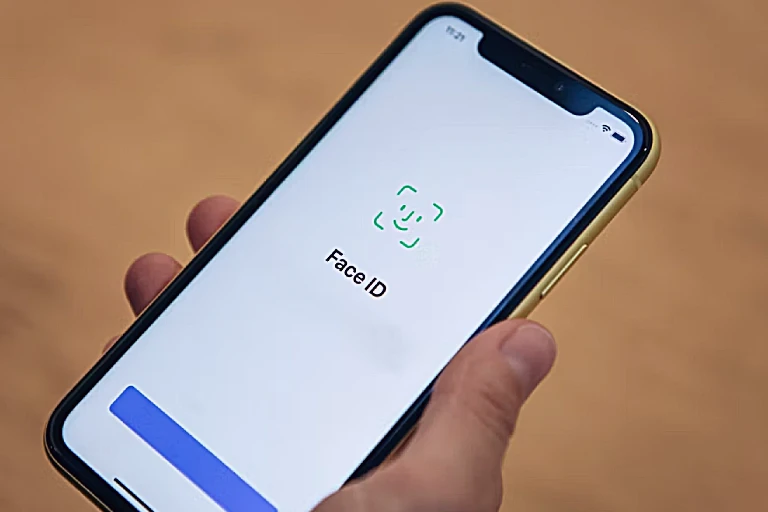

Face ID is arguably one of Apple’s greatest quality-of-life advancements, providing seamless security and lightning-fast authentication for purchases and app access. When your iPhone suddenly refuses to recognize you, throwing up frustrating messages like “Move iPhone Lower” or “Face ID is not available,” the smooth iOS experience grinds to a halt.
Don’t panic. Before scheduling a costly Genius Bar appointment, most Face ID failures can be resolved right at home. As the tech editors for 1apple.xyz, we’ve compiled the definitive troubleshooting guide to get your biometric security system back on track.

Phase 1: Basic Checks and Environmental Factors
Often, the issue isn’t a malfunction but a simple oversight. Start with these fundamental checks:
- Is the Camera Obstructed? Check the iPhone notch area (where the TrueDepth camera system is housed). Does your screen protector, bulky case, or accumulated grime cover the sensors? If so, remove the obstruction or wipe the area clean.
- Is Attention Required? Ensure that “Require Attention for Face ID” is enabled in Settings > Face ID & Passcode. While this improves security, it requires your eyes to be open and looking at the screen. If you wear glasses, especially specialized ones, try removing them temporarily.
- Check Alignment and Distance: Face ID works best when the phone is held at an arm’s length or closer, directly facing you. It won’t work if your phone is lying flat on a table.
- Are You Running the Latest iOS? Software bugs are common culprits. Go to Settings > General > Software Update and install any pending iOS updates. Apple frequently releases minor updates specifically to fix Face ID bugs.
Phase 2: Simple Software Troubleshooting Steps
If the physical checks didn’t work, it’s time to deal with potential software glitches or temporary memory corruption.
Restart Your iPhone (The Classic Fix)
This sounds obvious, but a simple power cycle can clear temporary conflicts and reinitialize the Face ID sensors.
- Press and hold the Volume Up/Down button and the Side button until the power-off slider appears.
- Drag the slider, wait 30 seconds, and turn the iPhone back on.
Verify Face ID Settings
Ensure that Face ID is configured to work for the tasks you are attempting (iPhone Unlock, iTunes & App Store, Wallet & Apple Pay).
- Navigate to Settings > Face ID & Passcode.
- Ensure the toggle switches are green for all desired functions.
Reset Face ID
If your device recognizes your face occasionally but is inconsistent, the registered data might be corrupted. The most effective software solution is to erase your current biometric data and set it up fresh.
- Go to Settings > Face ID & Passcode.
- Tap Reset Face ID.
- After the data is cleared, select Set Up Face ID and follow the on-screen prompts to register your face again. Ensure you perform the setup in a well-lit environment.
Phase 3: Addressing TrueDepth Camera Errors
Sometimes, the issue is directly related to the high-tech sensors themselves. These checks address specific scenarios that might disable the Face ID functionality.
Test an Alternate Appearance
Did Face ID stop working after you changed your hairstyle, grew a beard, or started wearing reading glasses? You can register a “second look” to improve recognition.
- Go to Settings > Face ID & Passcode.
- Select Set Up an Alternate Appearance.
- This is particularly useful if you frequently wear hats, sunglasses, or corrective eyewear.
Check for the “Face ID Has Been Disabled” Message
If you recently had your screen replaced by an unauthorized third-party repair shop, they may have damaged or improperly installed the screen unit. Since the TrueDepth camera system and the screen are paired to the logic board for security, unauthorized repairs can permanently disable Face ID. If you see a persistent error indicating the feature is disabled, this is likely the cause.
Phase 4: Hardware Failure and Contacting Apple Support
If you have tried every step above—restarting, updating, cleaning, and resetting Face ID—and you are still receiving the critical alert, “Face ID is not available. Try setting up Face ID later,” you are likely dealing with a hardware malfunction.
The TrueDepth components (including the dot projector and flood illuminator) are incredibly fragile. Damage can occur from drops, pressure on the screen, or even minor liquid exposure that wouldn’t typically damage the rest of the phone.
What to Do Next:
- Check Your Warranty: If your iPhone is still under Apple’s limited warranty or covered by AppleCare+, your hardware repair may be free or significantly discounted.
- Run Diagnostics: You can schedule a remote diagnostic test through the Apple Support app or website.
- Schedule Service: A hardware failure related to Face ID usually requires replacing the entire front sensor array, a complex procedure that must be performed by certified Apple technicians to ensure proper re-pairing of the security components to the Secure Enclave processor.
Final Thoughts
For most users, restarting the phone or resetting Face ID entirely will resolve the problem. Remember that Face ID is an essential security feature, and if you are facing persistent issues that require hardware service, it is crucial to use an authorized repair provider. Attempting further DIY fixes on the sensitive TrueDepth camera system can often lead to permanent damage, making the phone ineligible for official Apple repair later on. Get your iPhone fixed correctly the first time!